
Introduction
In the rapidly evolving world of digital content, the quality of your video can make or break your brand. As we step into 2026, one tool has emerged as the undisputed champion of professional post-production: DaVinci Resolve. What started as a high-end color grading system for Hollywood films has now become a complete all-in-one solution for editing, VFX, audio, and color. This DaVinci Resolve Masterclass for Professionals guide is designed to take you from a basic editor to a high-end storyteller.
11 Best AI Generative Video Editing Tools 2026: The Ultimate Pro Guide
Why Choose DaVinci Resolve in 2026?
The demand for high-quality visuals on platforms like YouTube, Netflix, and TikTok is at an all-time high. This DaVinci Resolve Masterclass for Professionals focuses on this tool because it offers a free version that is more powerful than most paid competitors. Unlike Adobe Premiere Pro, which requires a subscription, DaVinci Resolve offers a one-time purchase for its Studio version, making it a favorite in our DaVinci Resolve Masterclass for Professionals community.
The 7 Pages of Post-Production Excellence
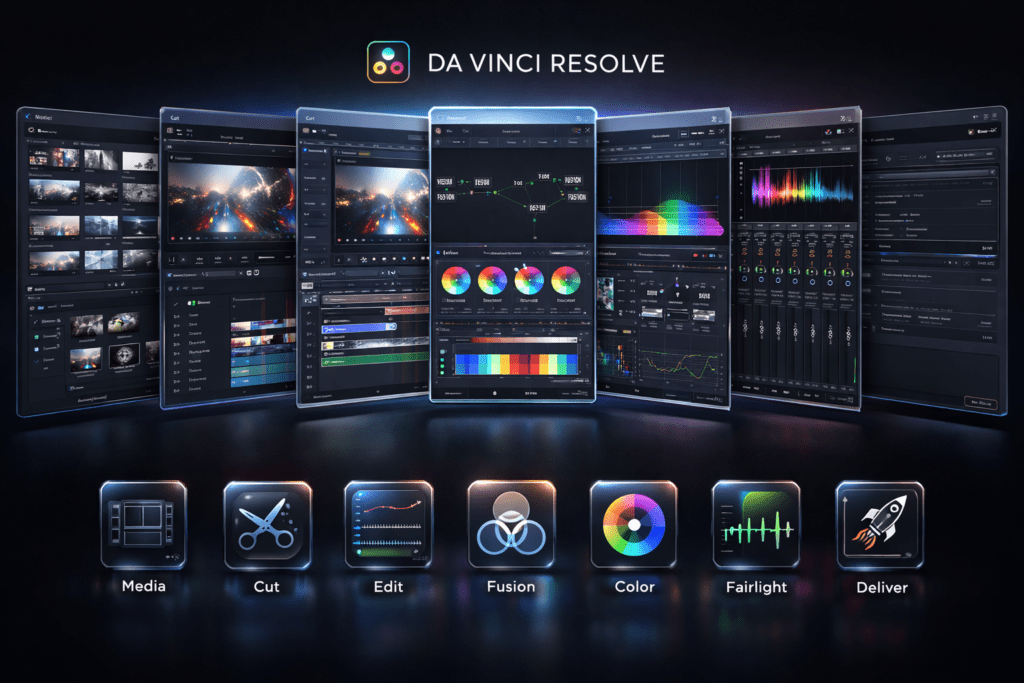
To truly master this tool, you must understand its unique workflow. DaVinci Resolve is divided into 7 specific pages, each dedicated to a part of the process:
Media Page: Organization and ingest.
Cut Page: Fast-paced editing for social media.
Edit Page: Traditional, detailed timeline editing.
Fusion Page: World-class VFX and motion graphics.
Color Page: The industry standard for color grading.
Fairlight Page: Professional audio post-production.
Deliver Page: High-speed rendering and exporting.
Download DaVinci Resolve from Blackmagic Design
Tip 1: Optimizing Your Hardware for Maximum Performance
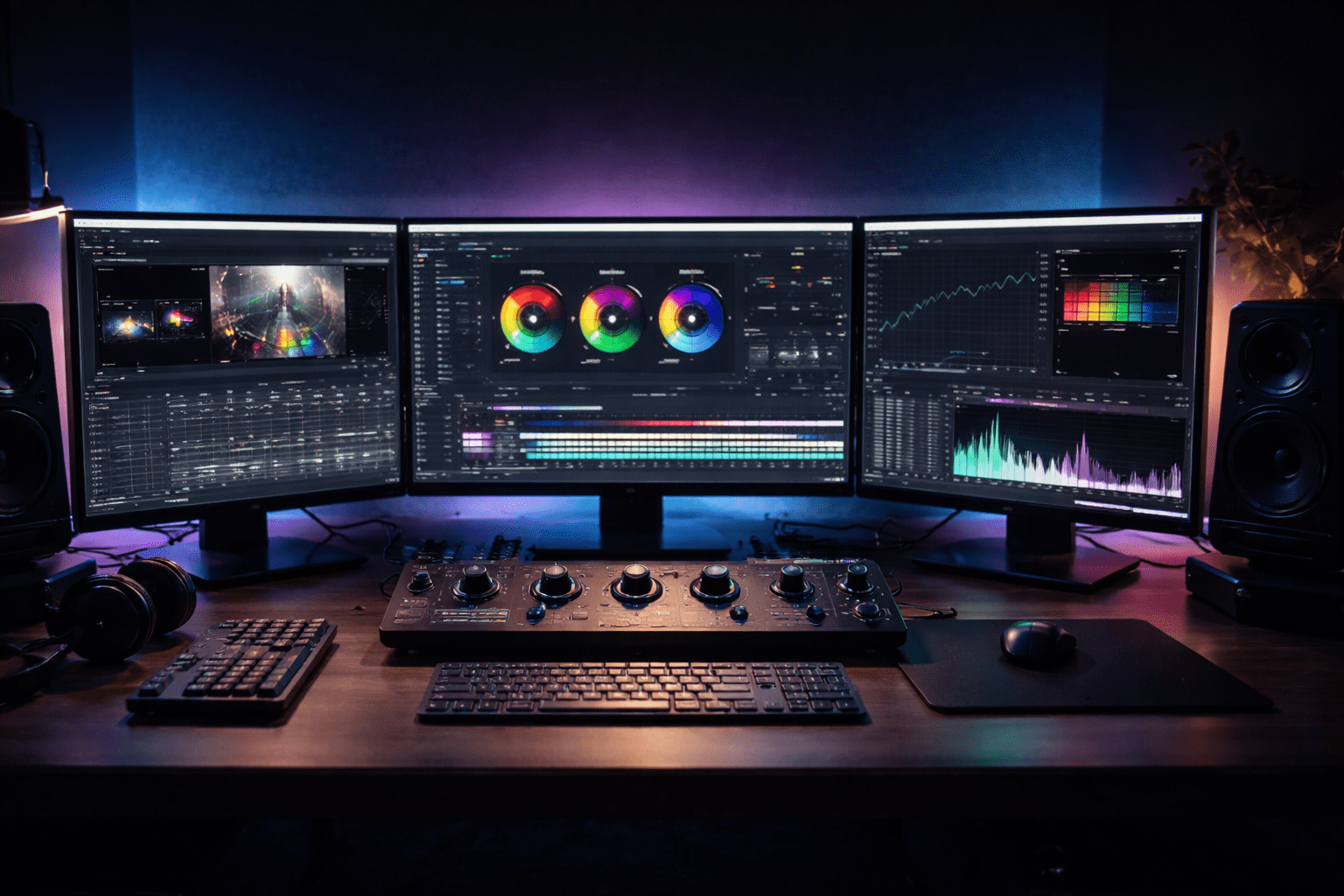
The first step in our DaVinci Resolve Masterclass for Professionals is hardware optimization. DaVinci is GPU-intensive.
The Pro Move: Ensure you have at least 8GB of VRAM and 32GB of RAM.
Proxy Workflow: If your computer is slow, use the “Proxy Generator” tool. This is a vital secret in any DaVinci Resolve Masterclass for Professionals.
Tip 2: Mastering the Neural Engine (AI Tools)
2026 is the year of AI. DaVinci Resolve’s Neural Engine is a game-changer.
Magic Mask: Automatically track objects or people for color grading.
Voice Isolation: Remove background noise with one click.
Depth Map: Add fog or blur to the background of any shot using AI. This is a core highlight of our DaVinci Resolve Masterclass for Professionals.
Tip 3: The Power of Node-Based Color Grading
Unlike layers in Premiere, DaVinci uses nodes. This is where the DaVinci Resolve Masterclass for Professionals really gets interesting.
Serial Nodes: For basic corrections.
Parallel Nodes: To combine multiple grades without one affecting the other.
Layer Nodes: For complex blending.
Edit Viral News Reels Like a Pro: 5-Minute AI Guide (2026)
Tip 4: Efficient Workflow on the Cut Page
Time is money. The Cut Page is designed for speed. In our DaVinci Resolve Masterclass for Professionals, we teach you how to use the “Source Tape” feature to scan hours of footage in minutes. This is essential for vloggers and social media creators who need to publish quickly.
Tip 5: Hollywood-Grade Color Management
One of the 13 proven tips in this DaVinci Resolve Masterclass for Professionals is using DaVinci Wide Gamut (DWG). This ensures your colors stay consistent across different cameras (Sony, Canon, iPhone) and different screens (TVs, Smartphones).
Tip 6: Fusion for Beginners: Think in 3D
Fusion can be intimidating. The secret taught in this DaVinci Resolve Masterclass for Professionals is to start with simple “Merge Nodes.” Fusion allows you to create 3D text and motion graphics that look professional without needing After Effects.
Credited By: Jake Wipp
Tip 7: Audio Perfection with Fairlight
Don’t neglect your sound. This DaVinci Resolve Masterclass for Professionals emphasizes the use of Fairlight.
Tip: Use the built-in “Loudness Normalization” to ensure your video sounds the same as other professional content on YouTube.
Tip 8: Keyboard Shortcuts (The Editor’s Secret Weapon)
A professional doesn’t use the mouse for everything. In this DaVinci Resolve Masterclass for Professionals, we provide a list of essential shortcuts (J, K, L, Cmd+D, Shift+S) that will double your editing speed instantly.
Tip 9: Using Power Grades for Instant Branding
Do you want all your videos to have the same “look”? Power Grades allow you to save a color grade and apply it to any future project. This is a key monetization strategy in our DaVinci Resolve Masterclass for Professionals, as it builds brand identity.
DaVinci Resolve vs. Premiere Pro: 2026 Comparison
| Feature | DaVinci Resolve | Adobe Premiere Pro |
| Pricing | One-time Payment / Free | Monthly Subscription |
| Color Grading | Industry Leader | Standard |
| AI Integration | Highly Optimized | Developing |
| Stability | Very High (GPU Based) | Moderate |
| Learning Curve | Moderate (Nodes) | Low (Layers) |
Tip 10: Advanced Exporting for All Platforms
Our DaVinci Resolve Masterclass for Professionals wouldn’t be complete without the Deliver page.
Secret: Use the “Social Media” presets but customize the bit rate to 50,000 Kbps for 4K uploads. This ensures no quality loss after YouTube compression.
Tip 11: Organizing with Metadata and Smart Bins
If you can’t find your footage, you can’t edit it. Use “Smart Bins” in this DaVinci Resolve Masterclass for Professionals to automatically group clips by camera type, resolution, or scene.
Tip 12: Collaboration and Multi-User Editing
DaVinci is built for teams. With Blackmagic Cloud, an editor in New York and a colorist in Mumbai can work on the same timeline at the same time. This is a huge news trend in our DaVinci Resolve Masterclass for Professionals circle.
Tip 13: Monetizing Your DaVinci Resolve Skills
Once you complete this DaVinci Resolve Masterclass for Professionals, the sky is the limit.
Gig Economy: Sell your services on Upwork or Fiverr specifically as a “DaVinci Colorist.”
Course Creation: Create your own DaVinci Resolve Masterclass for Professionals for local students.
Frequently Asked Questions (FAQs)
Q1: Is DaVinci Resolve Free really enough?
A: Yes! The free version includes 90% of the features mentioned in this DaVinci Resolve Masterclass for Professionals. The Studio version is only needed for advanced AI and 8K+ resolutions.
Q2: How long does it take to learn DaVinci Resolve?
A: To get basic editing right, about a week. To master the DaVinci Resolve Masterclass for Professionals level, expect 3 to 6 months of practice.
Q3: Can DaVinci Resolve run on a laptop?
A: Yes, especially the Apple Silicon (M1/M2/M3) MacBooks, which are highly optimized for this software.
Conclusion
Video editing is no longer just about cutting clips; it’s about mastering technology to tell a compelling story. This DaVinci Resolve Masterclass for Professionals has provided you with the 13 proven tips to dominate the industry in 2026. Whether you are a YouTuber, a filmmaker, or a social media manager, mastering this tool will set you apart. Start your DaVinci Resolve Masterclass for Professionals journey today and watch your creative vision come to life.